
The workflow
From bare lawn to a plan you can build from.
No tutorial videos. You open the sheet, and these are the moves — seven of them, in the order you'd actually make them.
Set your ground
Drop in an aerial photo and trace over it, or move the property line by hand corner to corner. Either way you're working in real feet, with a scale bar parked in the corner of the sheet.
Get the boundary right first. Every distance after this reads off it.
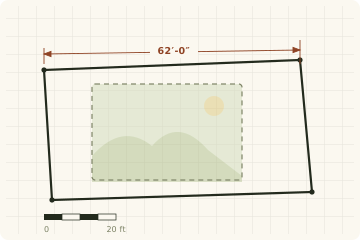
Trace the lot, or drag the boundary by hand.
Place plants
Pick from the library, click the lawn to drop one, drag to nudge it a foot left. Change your mind on a cultivar and you swap it in place — no starting over.
New plants key as T1, T2; what's already in the ground keys as E1, E2, so the plan tells proposed from existing at a glance.
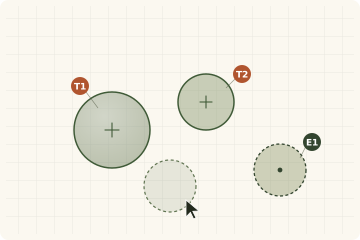
Click to place, drag to nudge, swap without restarting.
Draw and reshape beds
Draw a planting bed freehand around the plants you've set, then push and pull its edge until it hugs the walk and skirts the downspout the way it has to.
Fill it with mulch, stone, or turf and the bed takes on the right wash on the sheet.
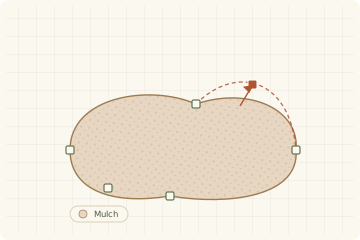
Freehand the bed, then drag the edge to fit.
Watch it grow
A plant ships small and ends up large, and those are two different designs. Toggle Today, +5, +10, +20, or Mature, and every canopy redraws at the size it would honestly be at that age.
Each species carries its own install radius, growth rate, and years to maturity — so you can space for year twenty instead of crowding for year one.
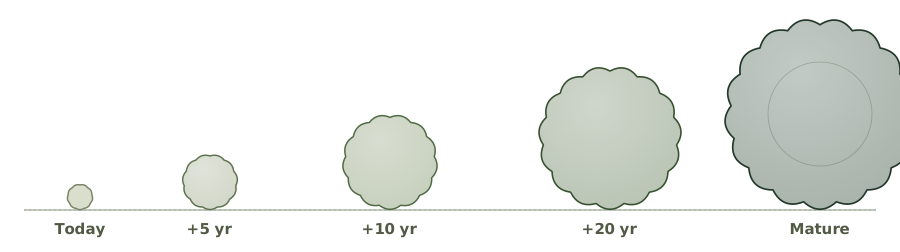
One species, install size through maturity.
Change the season
One toggle recolors the whole plan — spring leaf-out, summer green, fall reds and golds, winter structure. It's the fastest way to find the gap most yards have.
Catch the border that vanishes in February, while there's still time to put something with bark or berry behind it.
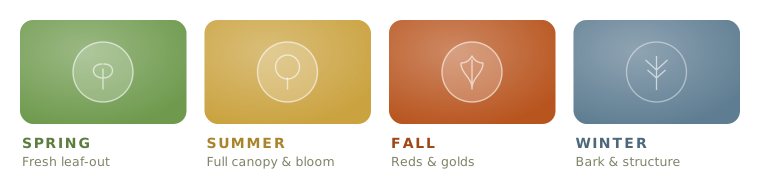
The same plan, recolored season by season.
Read it like a plan
The sheet keeps a keyed Plant Schedule going as you work: key, quantity, common name, botanical name. Dimension lines call out the spacing, and a title block carries the zone and the scale.
It's meant to read like a drawing a contractor or a nursery could build from, not a sketch.
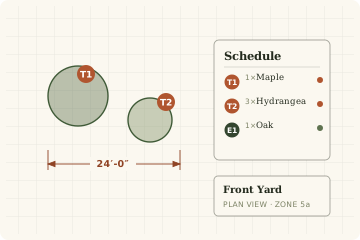
Keyed schedule, dimension lines, title block.
Export and keep it
Export a PNG or SVG to print and mark up at the kitchen table, or a JSON file to save the whole plan and reopen it later. Import that JSON back in any time.
It also auto-saves to this browser. Honest about that: it's localStorage, on this machine — no cloud, no account, no sharing yet.
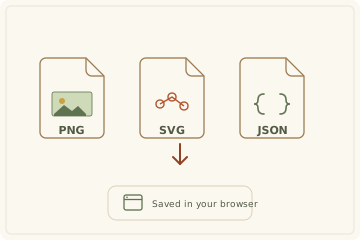
PNG, SVG, JSON out and in — plus auto-save here.
Open the sheet
Try it on your own yard.
The seven moves take about as long to do as they did to read. Nothing to install, nothing to sign — it opens to a working plan you can edit or clear.